

Download a dataset or selected images
You can take your images out of the platform at any time: a whole dataset, part of it or a single image. In this guide you download a dataset as a ZIP, filter what goes in it, and download a selection and one image.
What you will learn
- How to download a whole dataset as a ZIP
- How to download only the images of a tag or a division
- How to download a selection of images, or one image
1. Open the download
Open the dataset and click «More options», at the top right, then «Download». The «⋯» menu of the dataset's card in the list has the same option.
2. Choose what goes in the ZIP
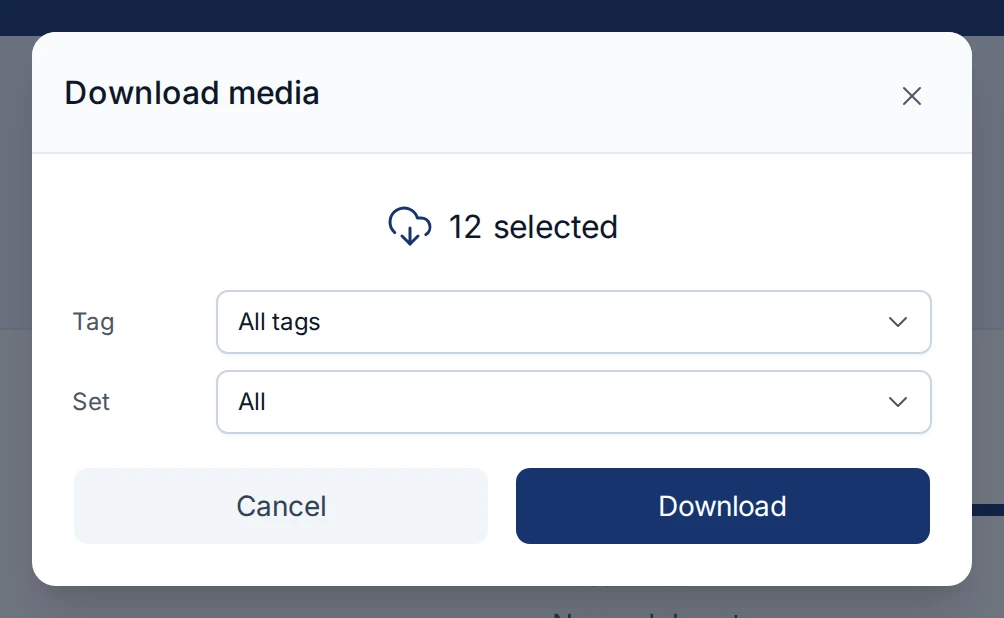
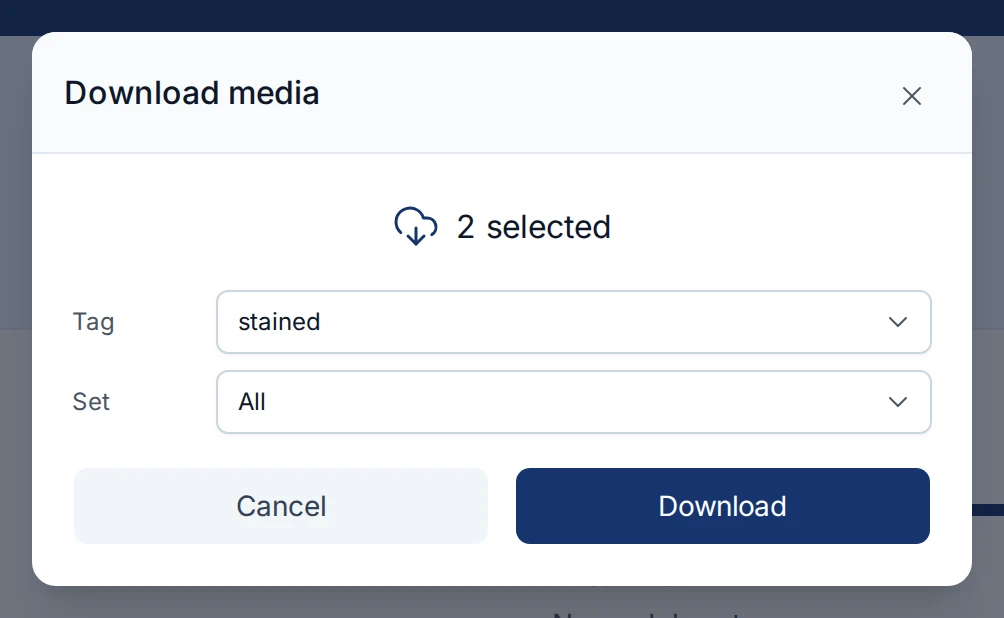
«Download media» counts the images that will go in the ZIP. Narrow them down with the filters: «Tag» and «Set» (the division) in every dataset, and also the review state and the group where the dataset uses them. Here only the stained jars are kept.
3. Download the ZIP
Click «Download». The platform prepares a ZIP with the original images, in one folder per tag (segmentation datasets add their masks), and your browser saves it. A large dataset takes a while: «Continue» lets you keep working, and the round button at the bottom right follows the progress. The link to a ZIP lasts seven days.
4. Select images in the grid
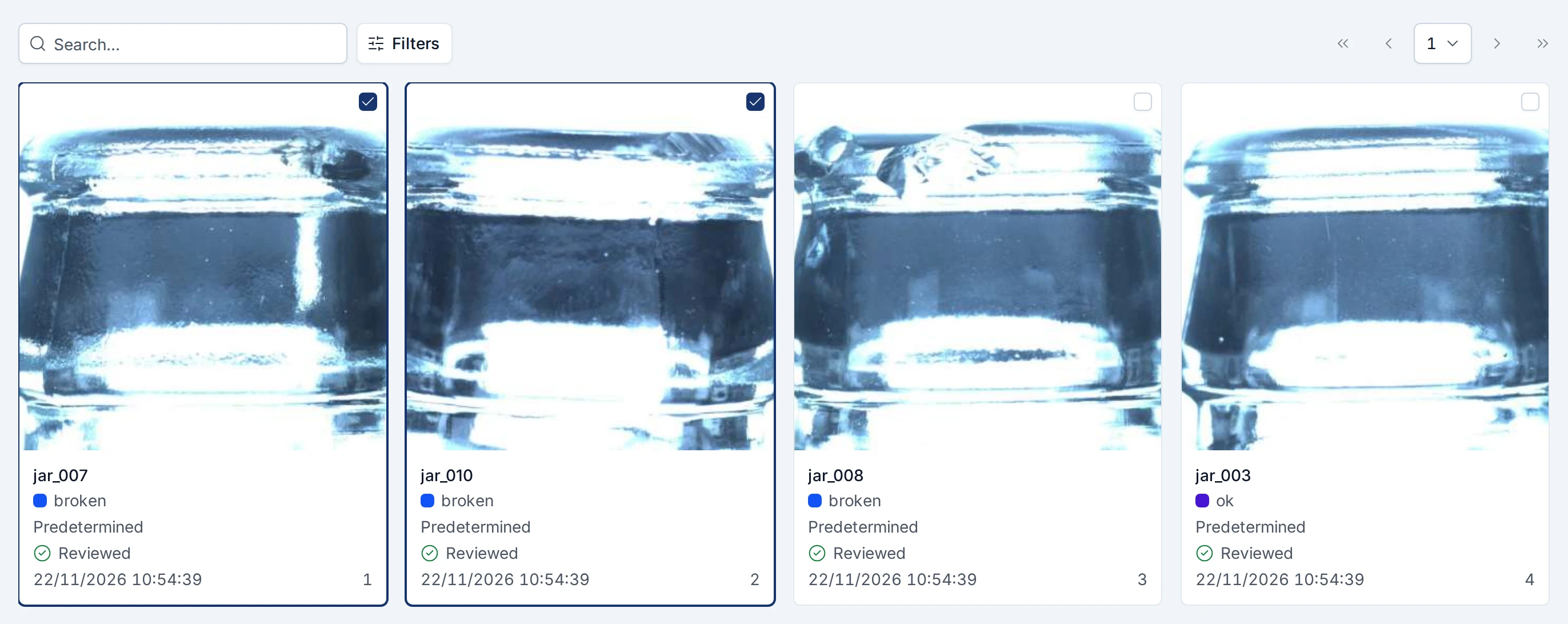
To pick the images one by one, click «Labeling» to open the image grid and tick the cards you want. Hold Shift to tick a range.
5. Download the selection
In the bar at the bottom, open «⋯» and click «Download». The same dialog opens with the selected images; click «Download».

6. Download one image
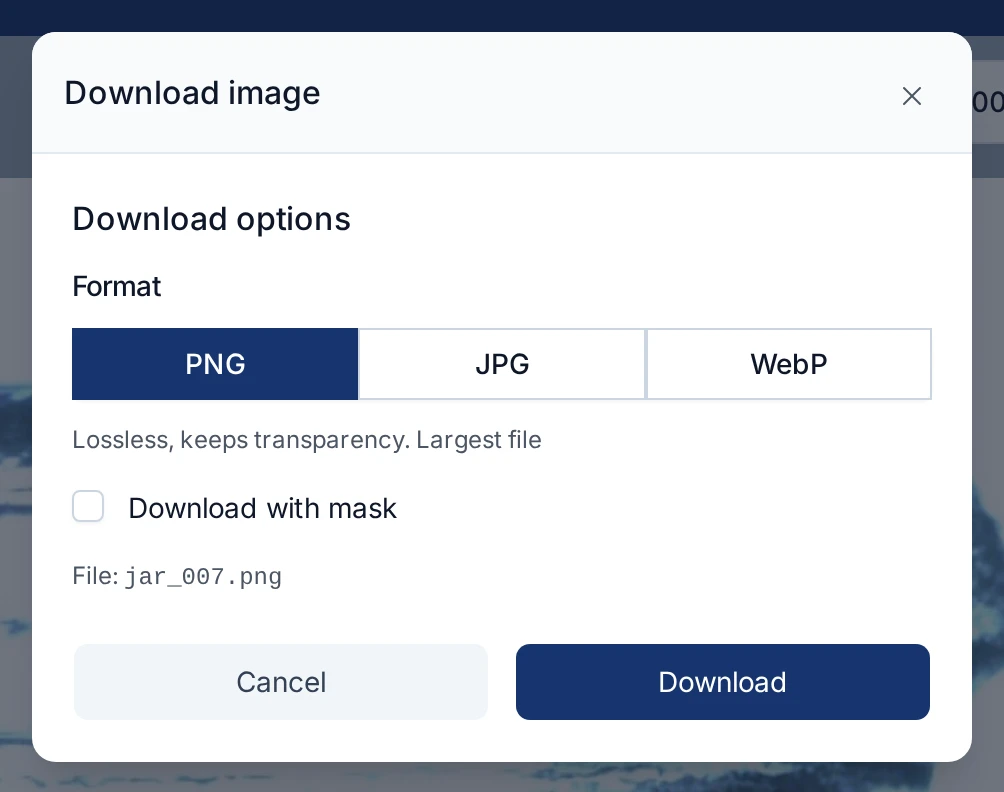
To download the image you are looking at, open it in the editor and choose «Actions» → «Download». Pick the format (PNG keeps every detail, JPG and WebP are lighter) and, in detection and segmentation datasets, whether to draw the labels on it with «Download with mask».
7. Save it
Click «Download» and your browser saves the image. The menu next to the dataset name in the image grid also has «Download dataset», and «Download CSV» for a table with the tag and the division of every image.
Next steps
- Upload images to a dataset to bring a ZIP back in, in this project or in another one
- Rename, archive or delete a dataset when you no longer need it
Recorded on Rosepetal release 1.8.15.